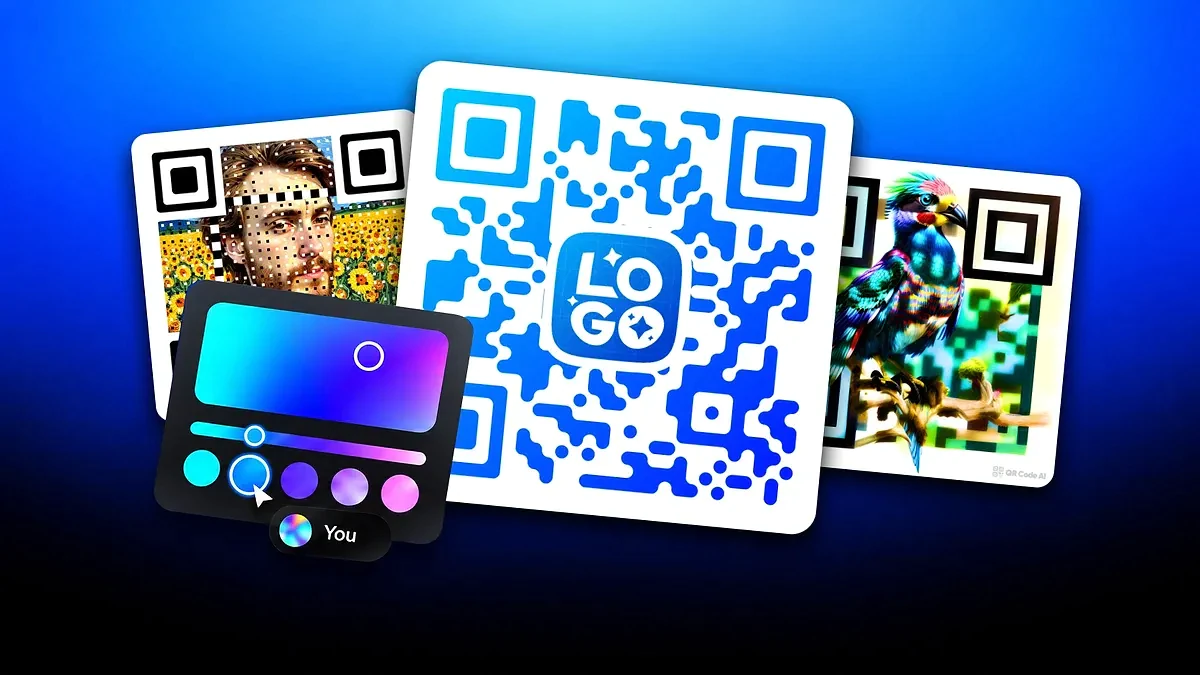
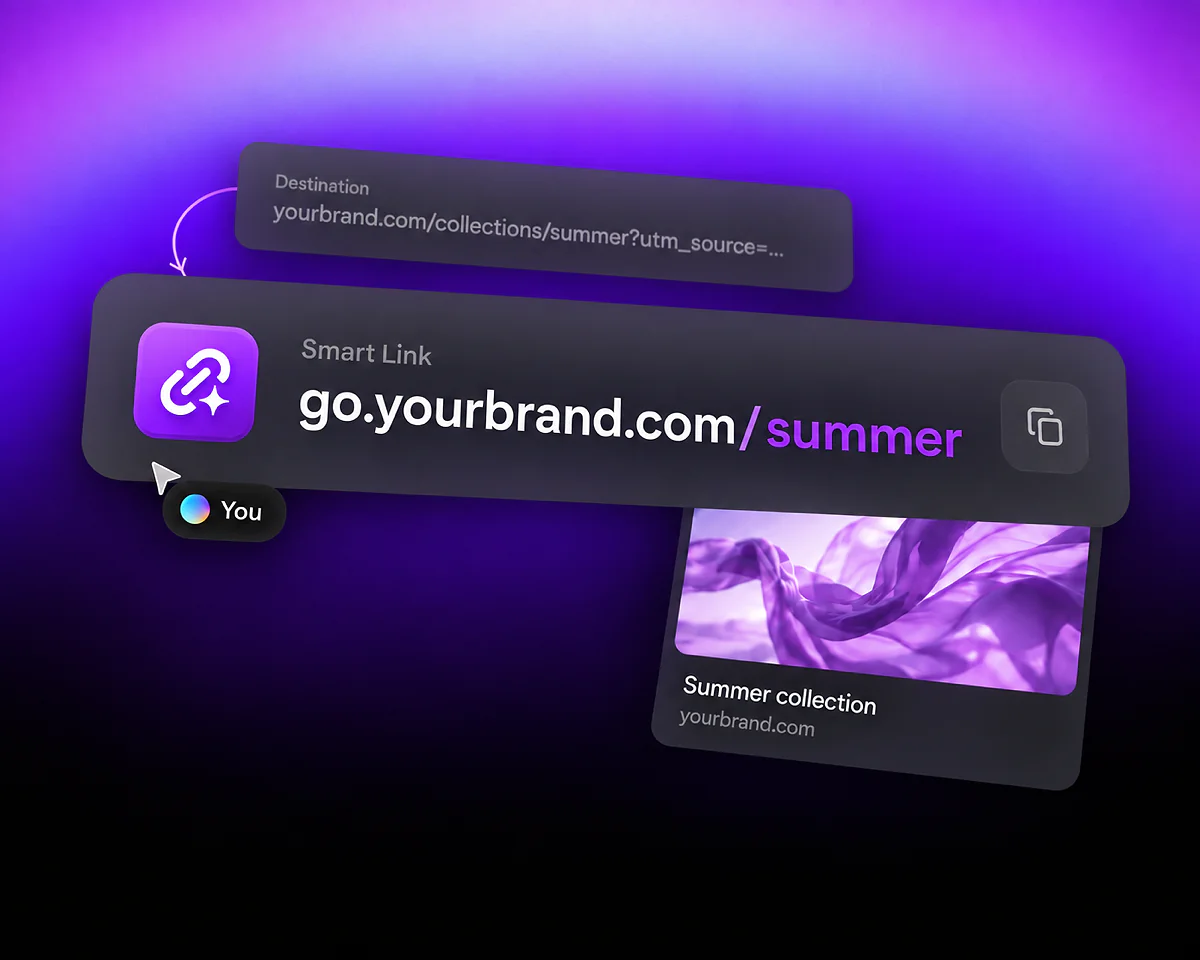
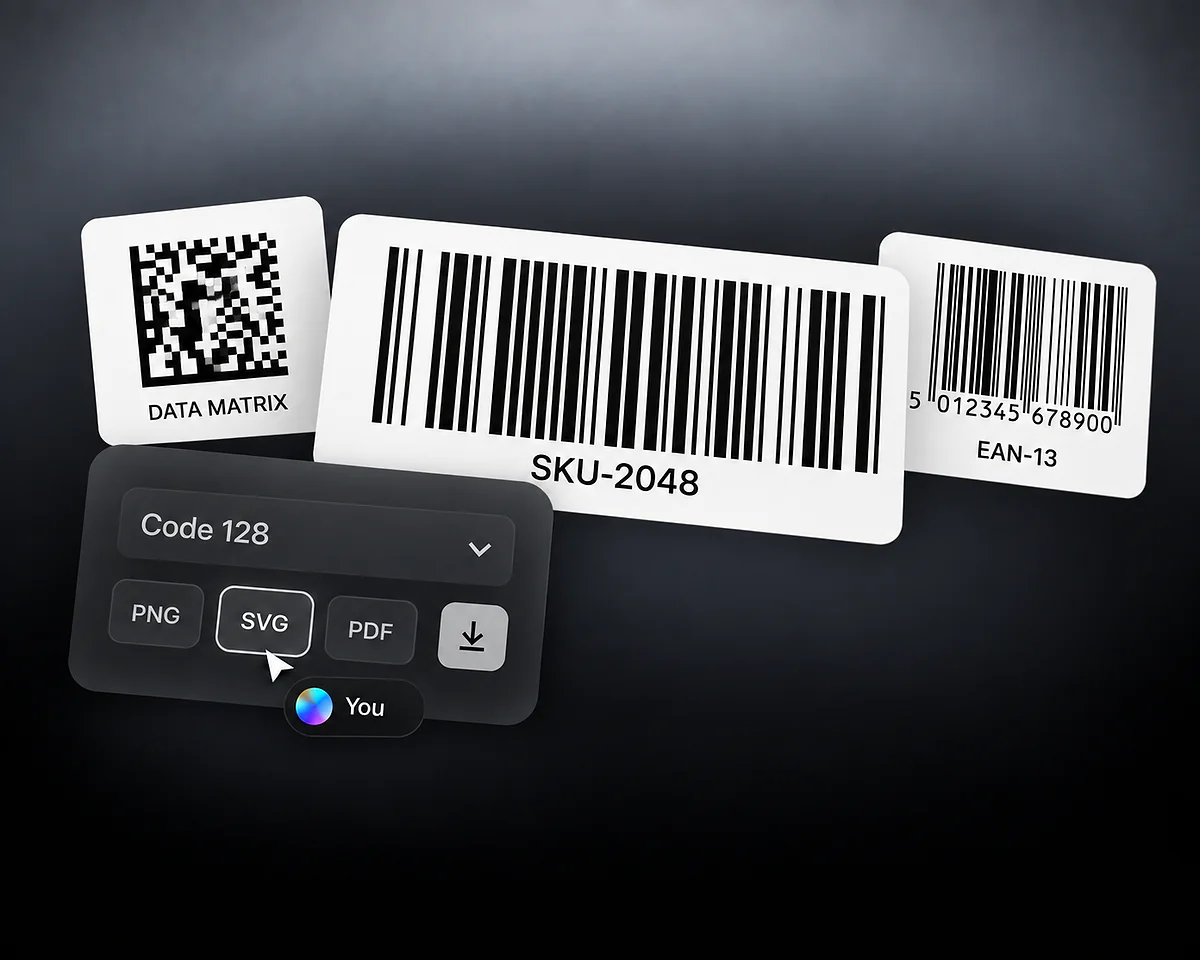
Manage a shared QR collection
The illustrated collection contains QR codes and a sample scan count. Workspaces also support Smart Links and Barcodes; Barcodes do not record scan analytics.
Bring campaign assets and the people who manage them into one Workspace. Give colleagues editing access, let clients view and export, and keep each team's resources separate.







QR Code AI uses three Workspace roles. A Viewer can still download and export; those actions do not grant editing access.
Create, edit, download, export, and manage shared resources.
Manage members, roles, billing, domain configuration, and sensitive API settings. The creator becomes the Owner.
Create and edit assets, download and export, and use permitted Workspace API resources.
Cannot manage the member roster or billing. Domain configuration and shared API-key reset remain Owner actions.
Read shared assets and analytics, preview, download, and export permitted data.
Cannot create or modify shared data, manage the team, or reveal the raw Workspace API key.
Imagine an agency managing a restaurant and a retail brand. Create one Workspace for each client, then invite the people who need access to that client's resources. The restaurant's menu QR codes and the retailer's campaign links belong to their respective contexts.
Each Workspace has separate assets, tags, analytics, API credentials, and outgoing-webhook scope. Check the selected Workspace before creating an asset or exporting a campaign report. Switching contexts does not move resources between clients or bring in personal assets.
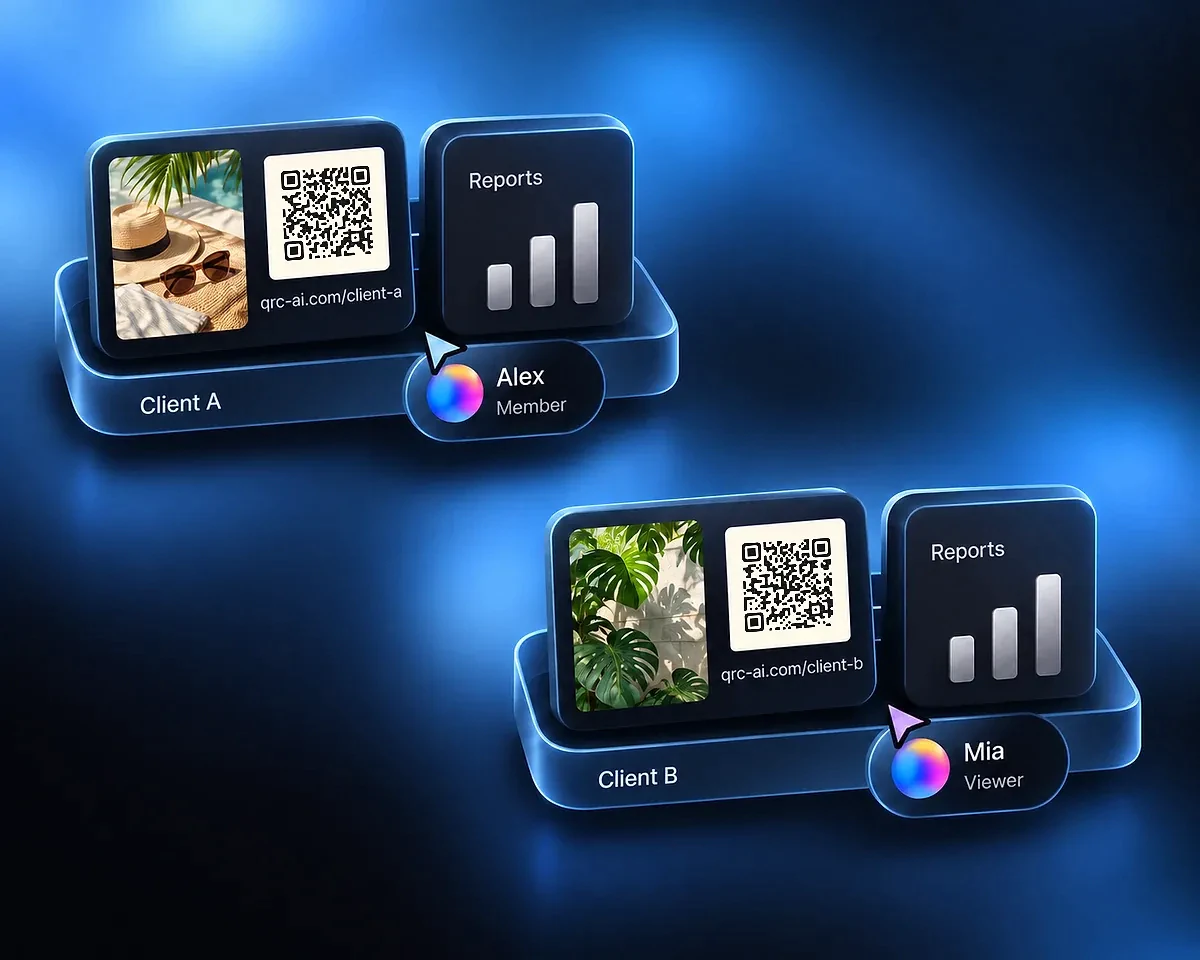
Invite the restaurant client as a Viewer to inspect shared QR codes and reports. The client can preview and download assets or export permitted reporting data, while an agency Member maintains the campaign.
Viewer access does not allow creating or changing resources, managing billing, or revealing the raw Workspace API key. The Owner assigns Member or Viewer access; ownership is not transferred through those role controls.
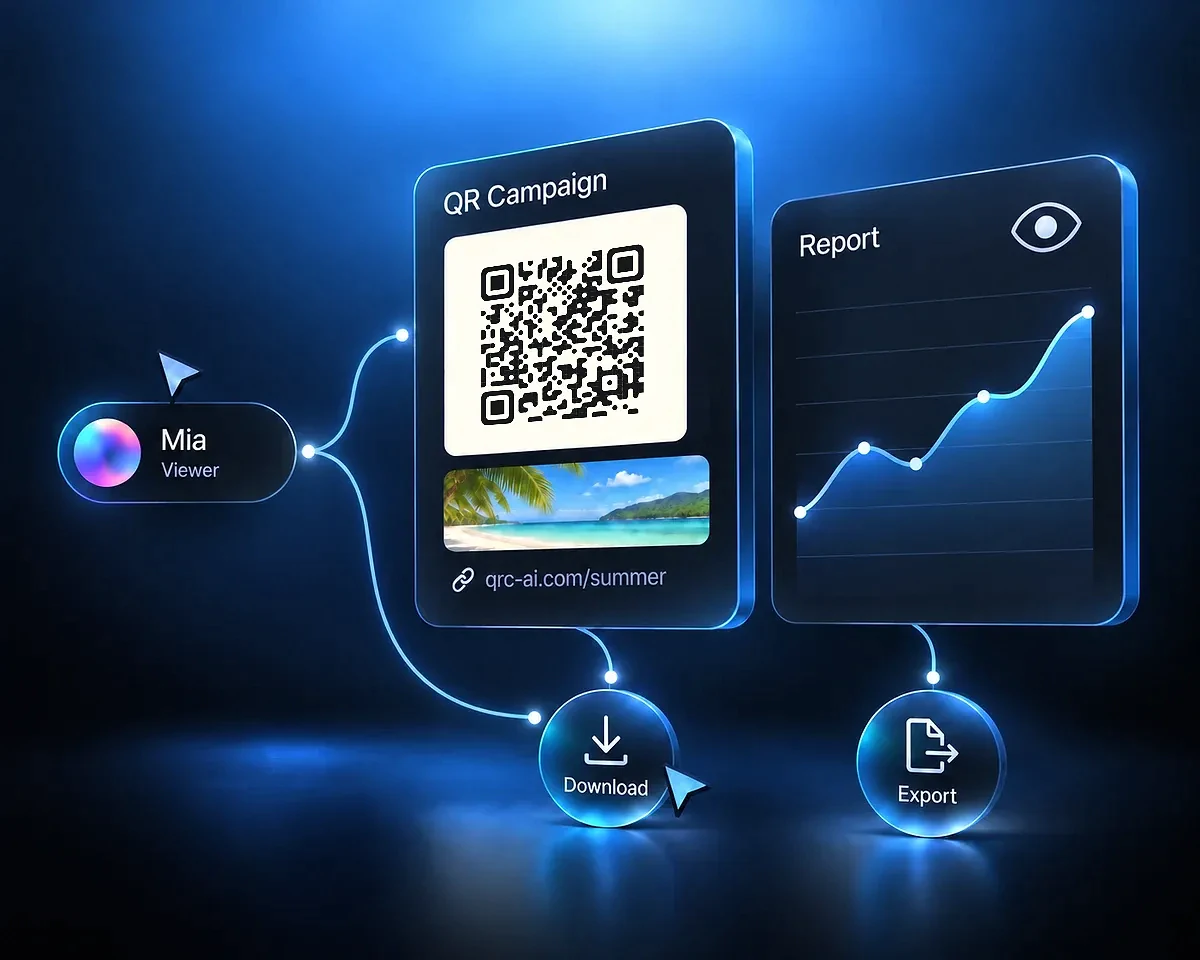
The sidebar context tells you where you are working.
Choose a team name and optionally add a logo. The person who creates the Workspace becomes its Owner.
The Owner invites colleagues or clients as Members or Viewers. Invitees accept or decline from their notifications after signing in.
Switch to the Workspace, create the required assets, and review them with the team. Use Smart Links for clickable campaigns or the Barcode generator for barcode assets.
The shared activity feed in Workspace Settings covers the latest 12 months. It records supported asset changes and team events with their available attribution. Actions using the shared API key appear as Workspace API activity when no individual identity is available.
Online avatars show who is connected to the Workspace. They do not identify who is editing a particular item or promise simultaneous editing of the same asset.
Choose the asset your team needs. Use the selected Workspace in the app when saving shared work.
QR Code AI is used by 500,000 people across more than 200 countries. Together, they have created 4 million Smart Links.
4M
500K
200+
A Workspace is an independent shared environment for a team. It brings together campaign assets, analytics, tags, domains, and API resources. Its resources stay separate from personal accounts and other Workspaces.
The Owner has full resource access and controls members, roles, settings, and billing. Members create and edit shared resources and use permitted API features. Viewers read, preview, download, and export without creating or modifying data.
Yes. Viewer access includes reading shared assets and analytics, downloading assets, and exporting permitted data. It does not allow changes to campaigns, notes, templates, or Workspace settings.
Yes. Use a separate Workspace for each client or brand and invite the people who need access to that context. Check the selected Workspace before creating assets or opening reports; personal and other Workspace resources remain separate.
The Owner can invite an existing user or an email address as a Member or Viewer. An invitation to an unknown email does not create an account automatically. The recipient signs up or signs in, then accepts or declines the invitation from notifications.
No. Presence shows who is currently connected to the active Workspace, not who is editing a particular asset. The shared activity feed records supported changes and team events separately.
No. Each Workspace has its own subscription and trial. You can own up to two non-Premium Workspaces, each with an allowance of three QR codes, three Smart Links, and three Barcodes. Free AI credits belong to each person: five credits once, shared across their personal account and all free Workspaces. The Workspace's first QR code or Smart Link creation starts a seven-day trial; an eligible first visit can start it for an existing asset created outside that flow. Barcode creation does not start the trial. After the trial, Premium is needed for continued dynamic QR and Smart Link visitor delivery, and the Owner manages that Workspace's billing.