Barcode Generator

Create barcodes online for products, inventory and packaging. Choose from 10 formats, customise colours and text, and download PNG, JPG, WebP, SVG, PDF or EPS.

COMPANIES OF ALL SIZES TRUST US

Turn a product number or inventory ID into a barcode

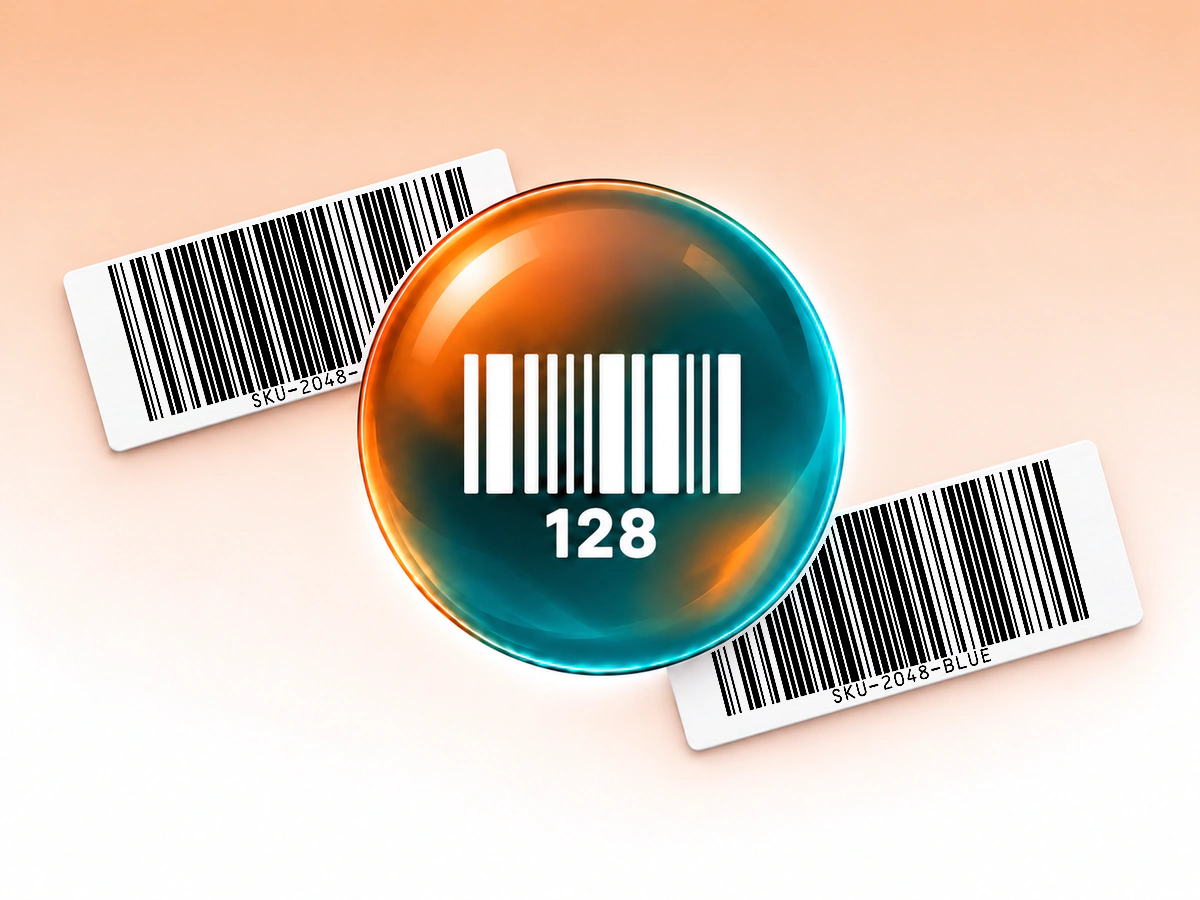
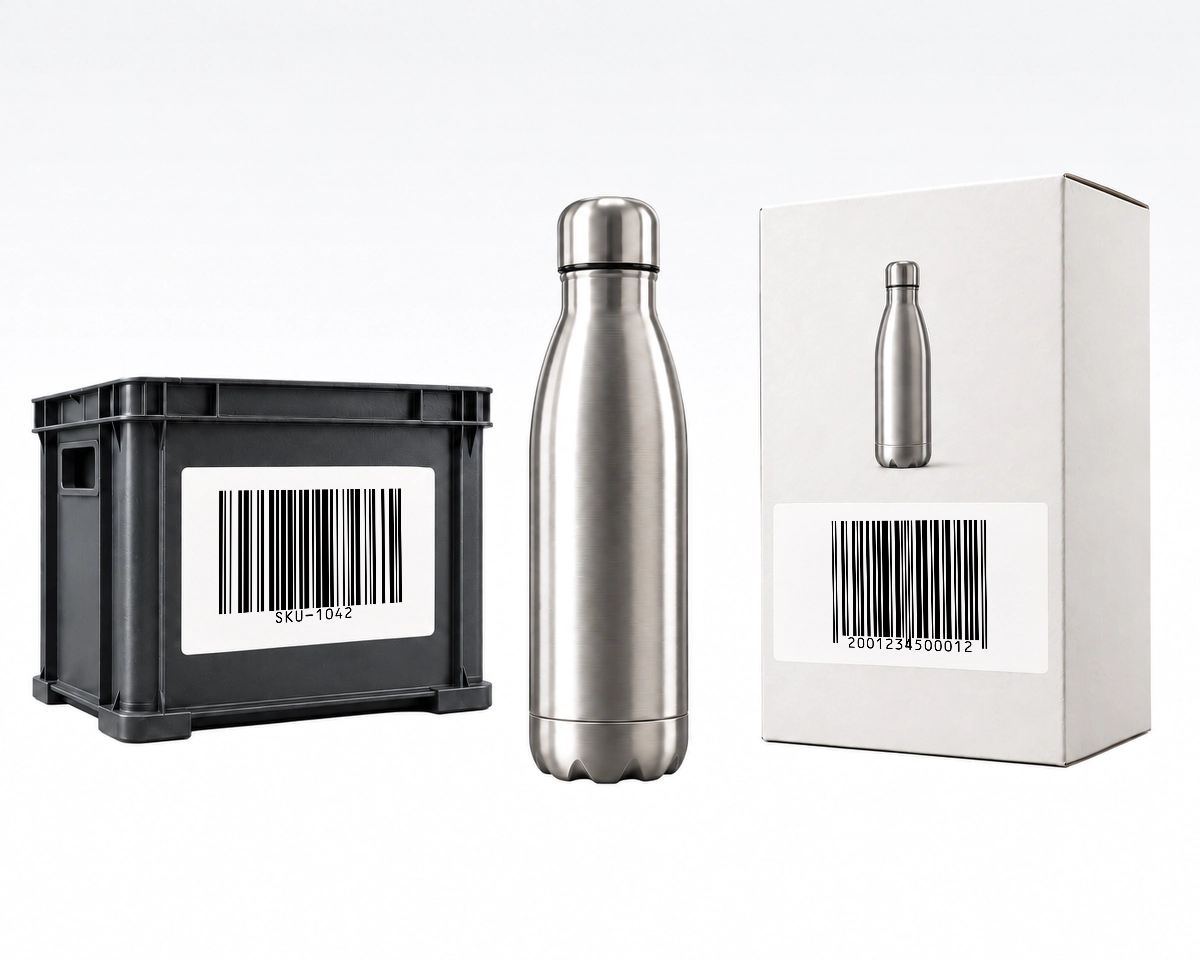
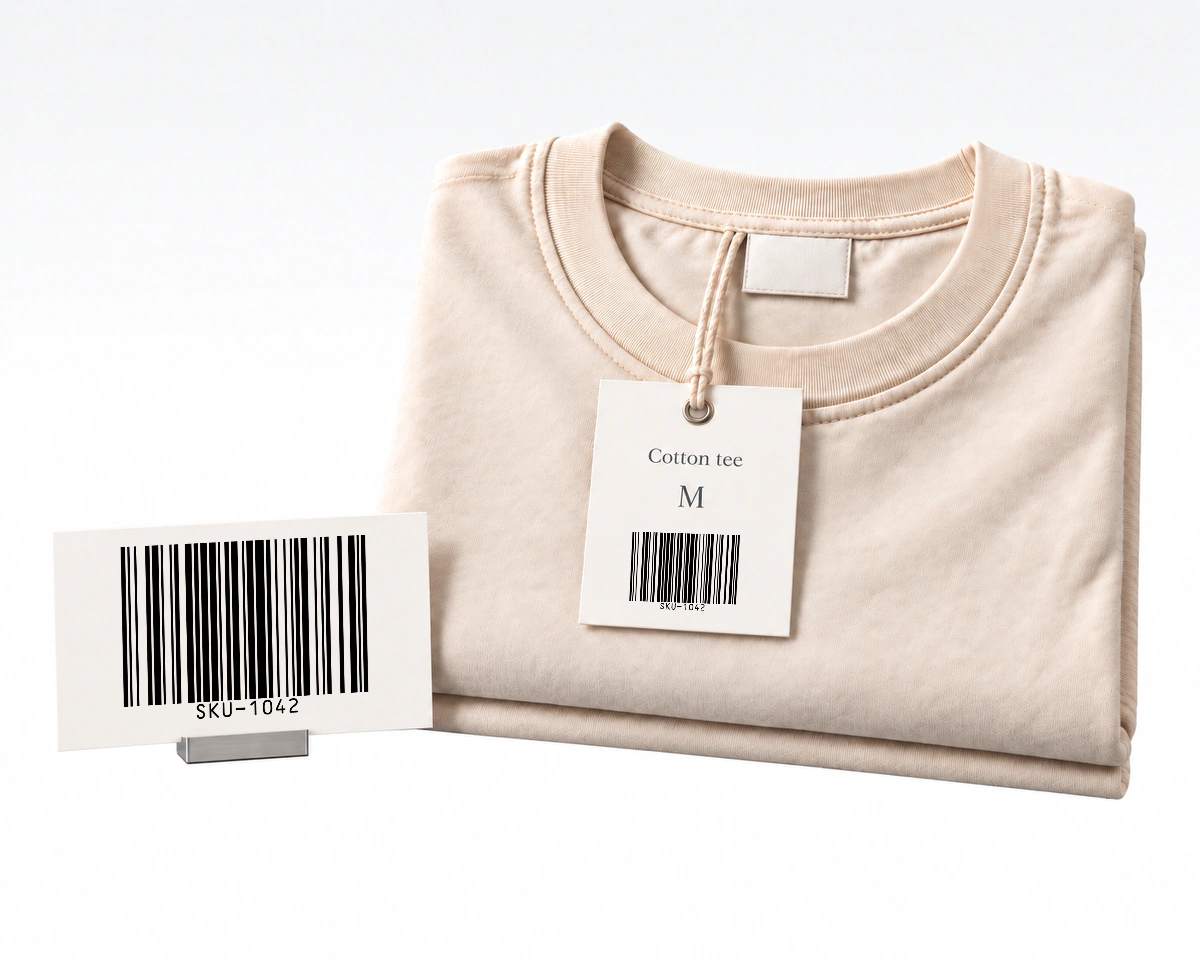
A barcode generator converts your data into a symbol that a compatible scanner can read. QR Code AI creates static barcodes for retail products, stock records, cartons, books and component labels. For example, enter SKU-1042 in Code 128 to create an internal inventory label: a scan returns SKU-1042, which your inventory software can match to its record.

Design, check and manage your barcodes

Create a label that fits your workflow, check the rendered symbol and keep the saved artwork organised. These tools work across all ten barcode formats.

Customise barcode colours and text

Set foreground and background colours to fit your label. Keep bars or modules darker than the background; the live preview warns when contrast is too low. For linear barcodes, show the human-readable value for manual entry or hide it for a simpler label. Data Matrix uses the symbol without a text caption.
TypeEANUPC12839Padding481216ColourYou

Check readability before downloading

Review the High, Medium, Low or Not scannable result before saving. Fix a Not scannable result to continue. Each download is checked against your saved data and format; unreadable or mismatched files are blocked. These checks do not certify print quality.

HighChecking

Download images or true vectors

Download PNG, JPG or WebP images, or SVG, PDF or EPS vectors. Each file preserves the colours and proportions of your saved barcode.

PNGJPGWebPSVGPDFEPS

Keep the required clear space

Adjust extra padding from 0 to 32 pixels. The required quiet zone, the clear area around the symbol, remains even at zero extra padding. Preserve it when placing the download on packaging or a label.

... Quiet zone Padding ... Quiet zone Padding

Organise your barcode library

Find saved Barcodes with search and tags, inspect their encoded value and format, or duplicate one as a starting point. Archive and restore items, and review up to one year of change history.

Search barcodes…Tags ... 23213213Code 128 23213213Code 12823213213ProductsPackagingDownload ... 98765432SKU 98765432Code 12898765432ProductsPackagingDownload

Manage barcodes with your team

Keep barcodes, QR codes and Smart Links in one Workspace. Create and edit barcodes as a Workspace Owner or Member. Viewers can preview, download, export and read history. Filter by member or export up to 10,000 matching records as CSV. The CSV contains records, not barcode images.

BarcodesProductsPackagingInventoryDesignLibraryBarcodes1,284YouAlexSamMia

Need a QR code instead?

QR Code AI also creates QR codes for website links, WiFi access and documents. Use a barcode to identify a product and a QR code to open its instructions. Share branded short links in emails or messages with Smart Links.

LogoShapeColourGradientRadialYou

Generate barcodes with our API

Integrate barcode generation into your applications and workflows. Use product numbers or inventory IDs from your own system to create barcodes for labels and packaging. Automate repeated creation tasks without entering each value manually in the editor.

POST200268ms{ "barcode": { "width": 1024, "height": 320, "url": "https://cdn.qrcode- ai.com/barcode/…png" } }40094ms{ "message": "Validation failed: either template or config is required", "statusCode": 400 }40182ms{ "message": "The authentication token is invalid", "statusCode": 401 }500312ms{ "message": "Failed to generate Barcode", "statusCode": 500 }

How to create a barcode online

Go from an identifier to a downloadable barcode in three steps.

  1. Step 1

    Choose a format and enter your data

    Select the format required by your scanner or receiving system. Enter your identifier, or use the structured fields for GS1-128. The editor checks the input and provides check-digit guidance where applicable.

  2. Step 2

    Customise and check the preview

    Adjust the foreground, background, human-readable text and padding. Review the automatic readability result as you make changes. If the result is Not scannable, correct the design before saving.

  3. Step 3

    Save, download and test your label

    Save the Barcode, then choose PNG, JPG, WebP, SVG, PDF or EPS. The final download is checked against the saved data. Test a printed sample at its intended size, on the intended material, with the receiving system. Use formal barcode verification when your trading partner requires it.

Barcode detailsCode 128Code 39EAN-13EAN-8UPC-AUPC-EITF-14GS1-128ISBNData MatrixAbC-128x9You

Which barcode fits your task?

Choose by the data you need to encode and the system that will read it. For retail and logistics, follow your trading partner’s requirements and the GS1 guide to choosing a barcode.

Data to supply

Letters, numbers and supported ASCII characters

Example internal ID

SKU-1042

Code 128 Barcode Generator

Data to supply

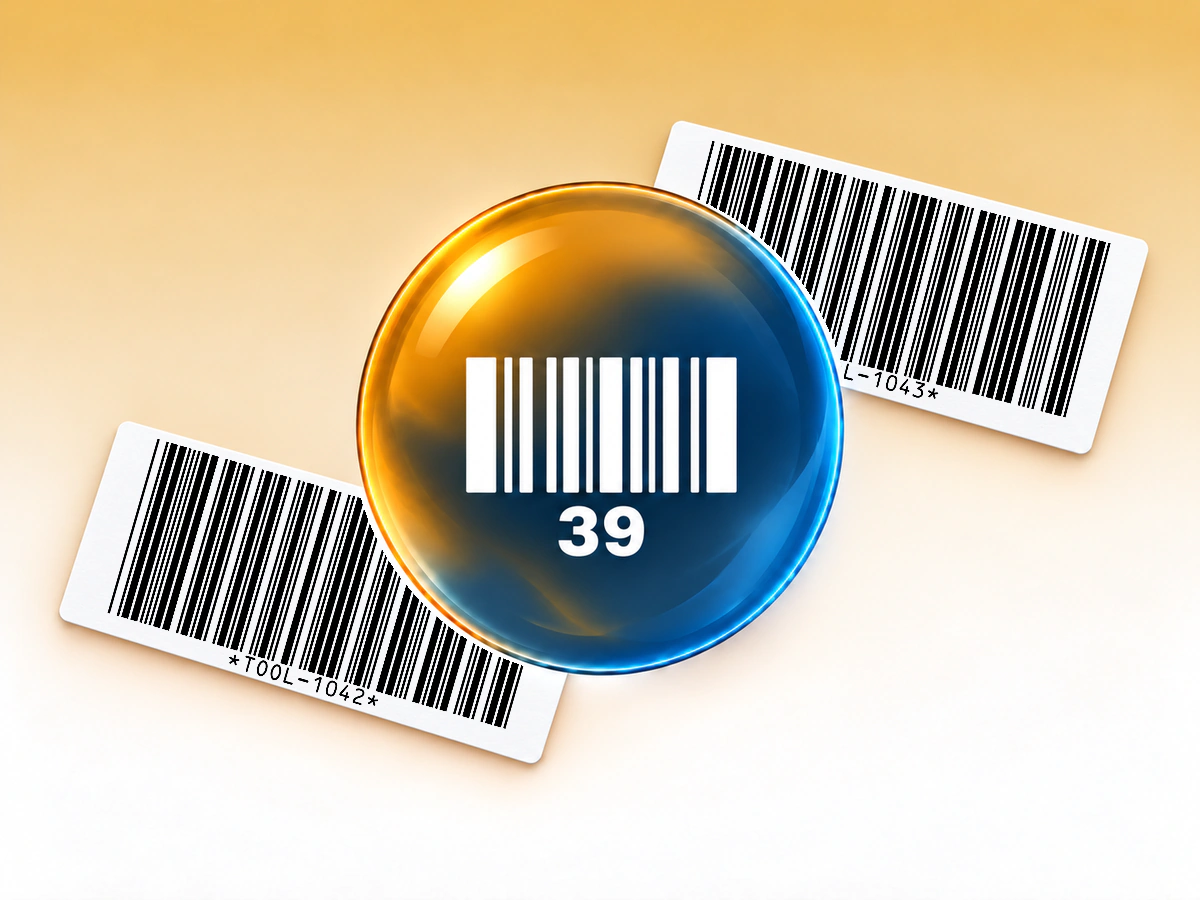
Uppercase letters, digits and selected punctuation

Code 39 Barcode Generator

Data to supply

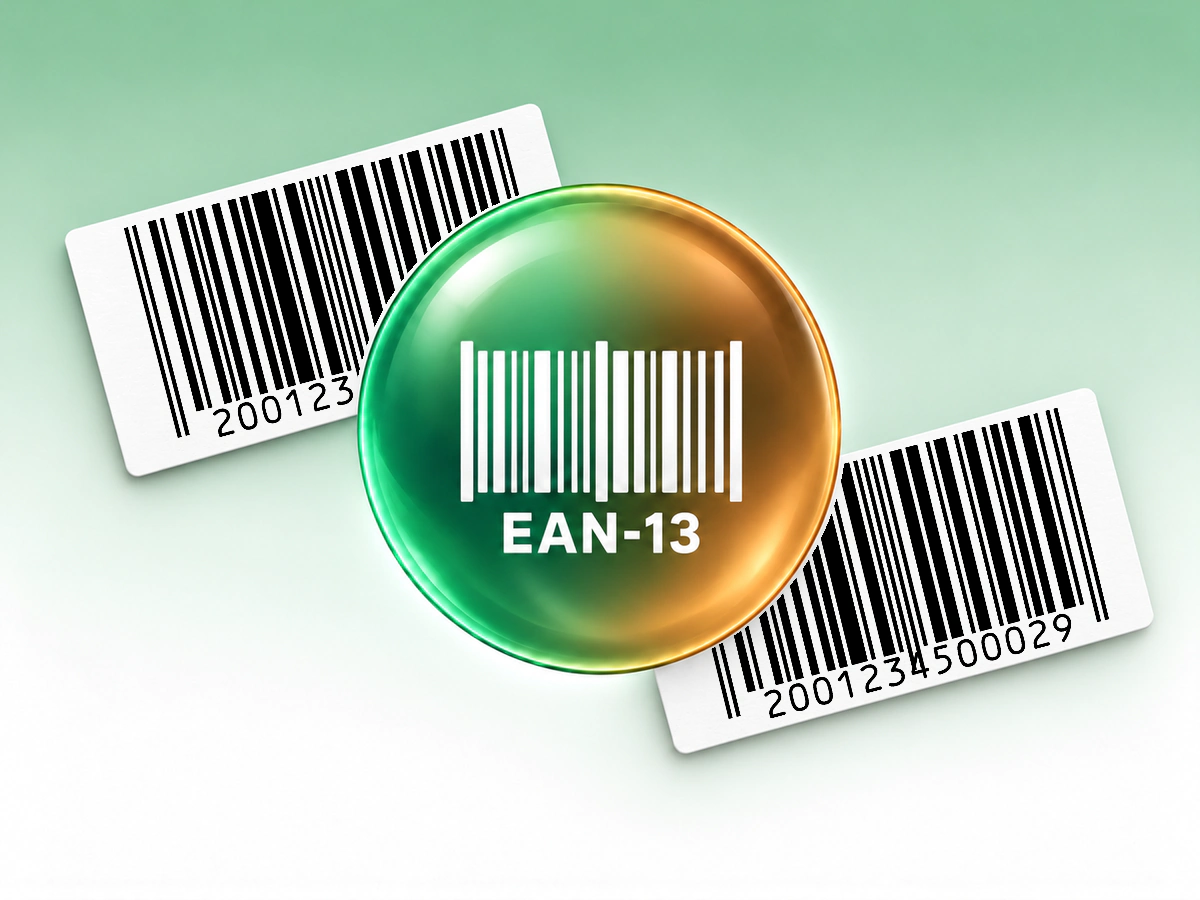
A 13-digit product number, including its check digit

EAN-13 Barcode Generator

Data to supply

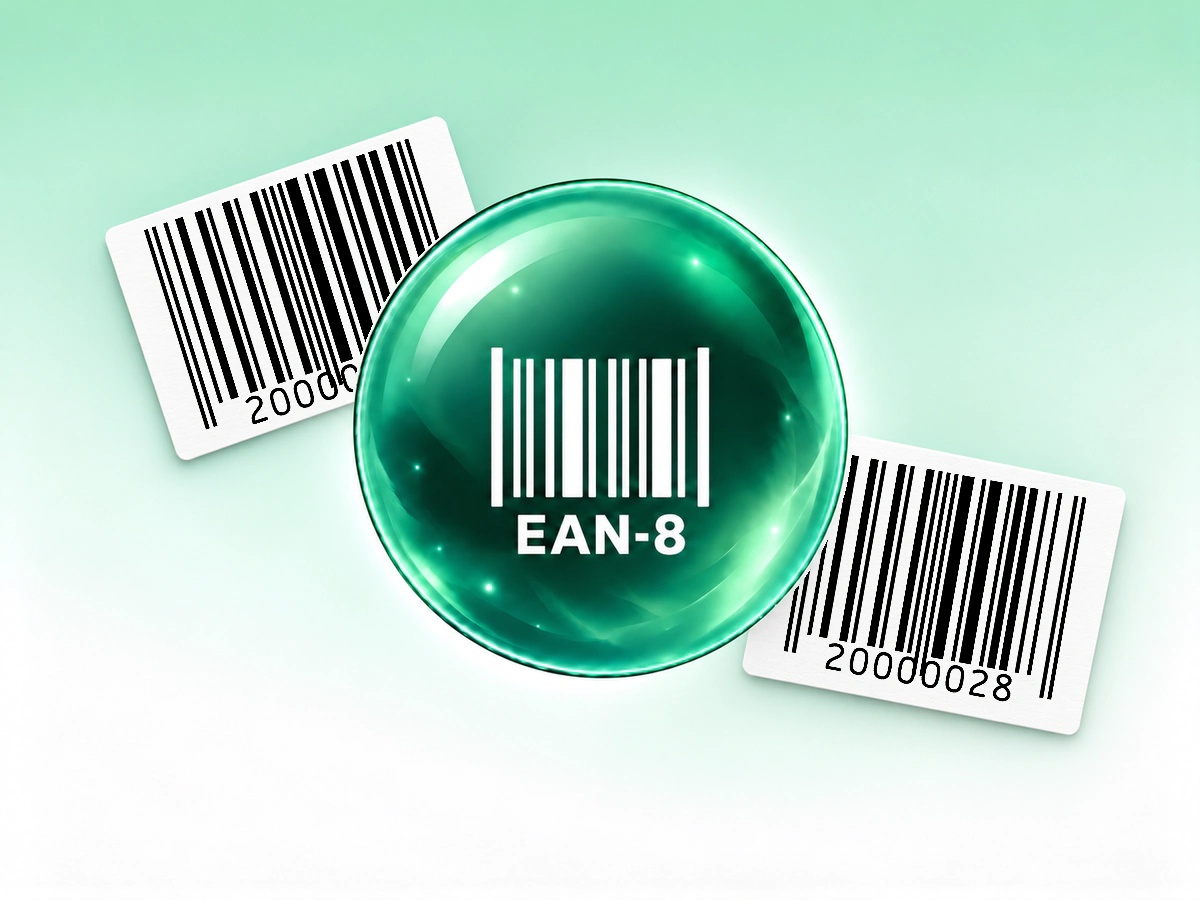
An assigned 8-digit product number

Format guidance

EAN-8 requires its own assigned identifier; it is not a shortened EAN-13.

EAN-8 Barcode Generator

Data to supply

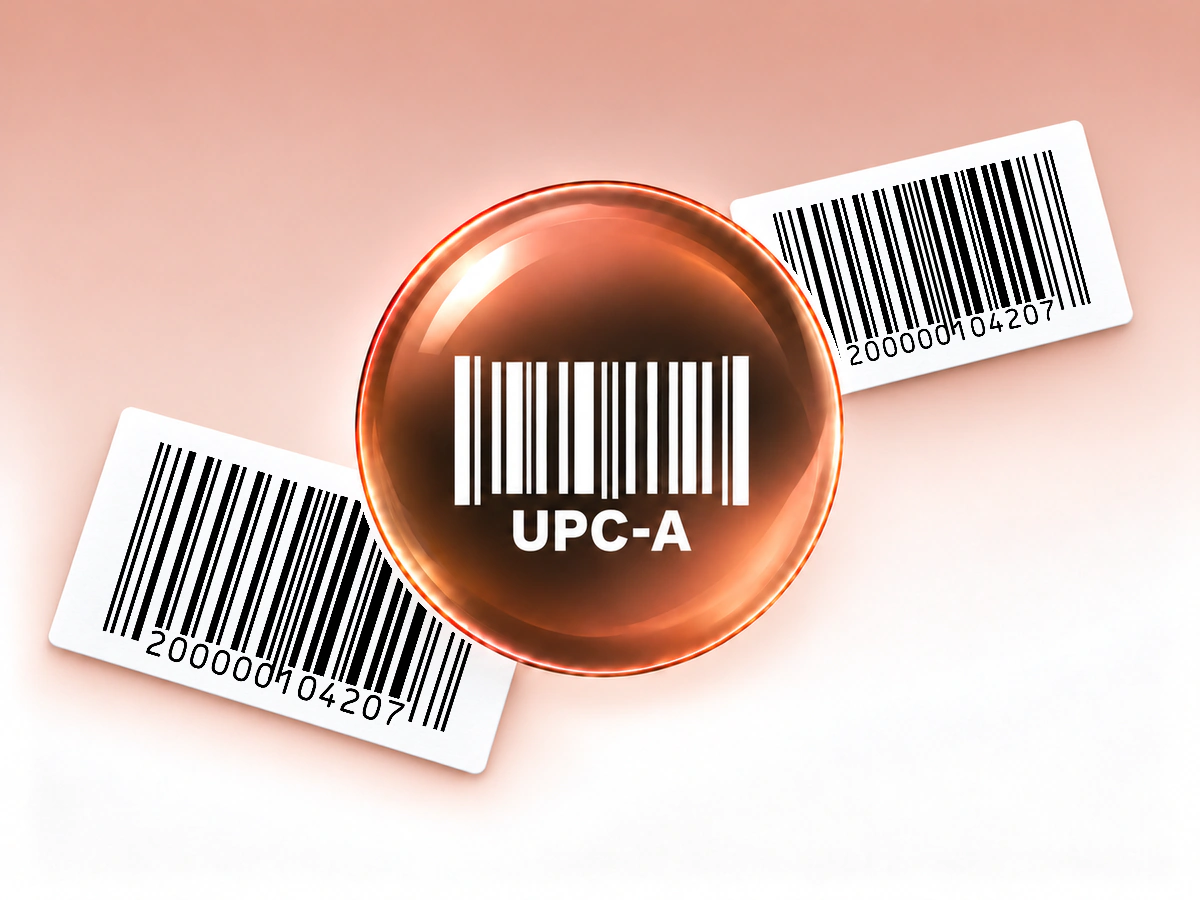
A 12-digit product number, including its check digit

UPC-A Barcode Generator

Data to supply

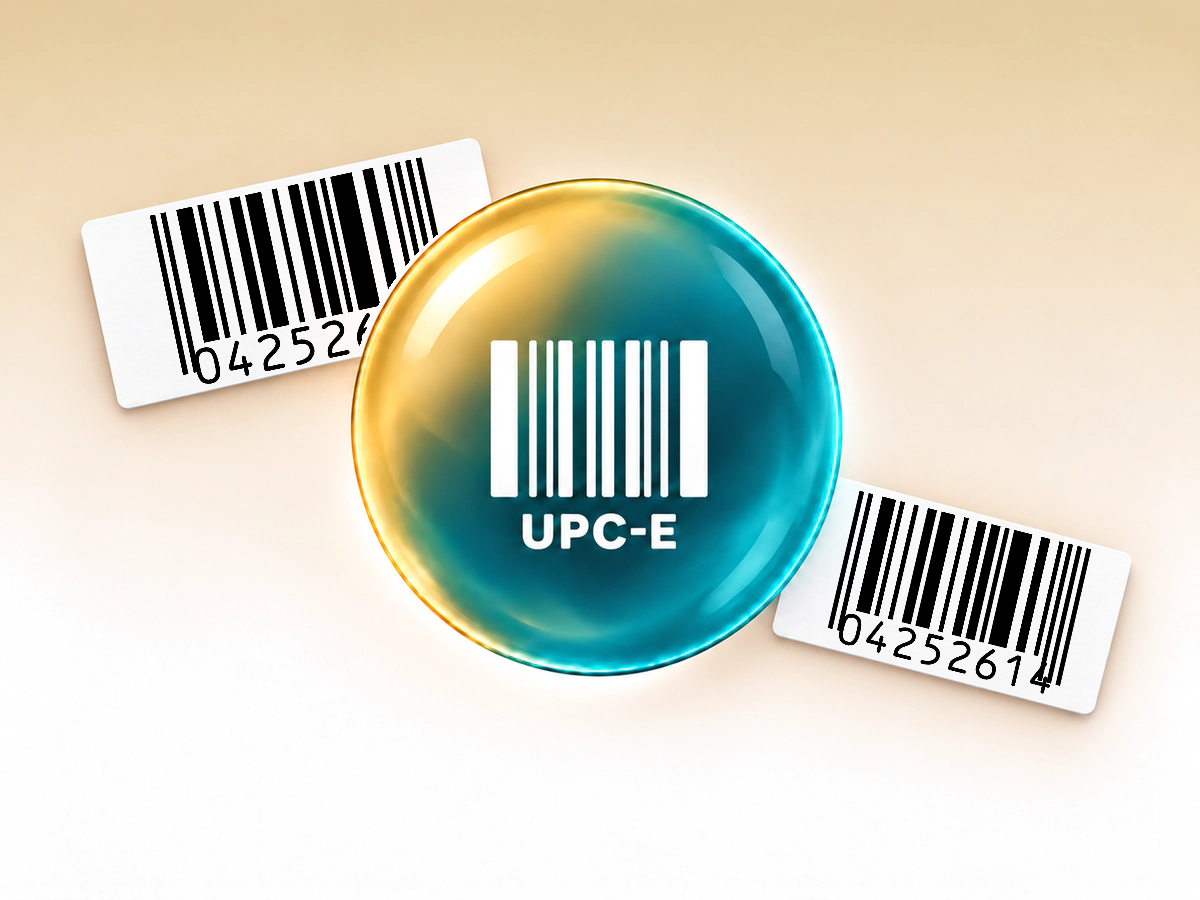
An eligible compressed UPC number

Format guidance

UPC-E compression applies only to eligible UPC numbers.

UPC-E Barcode Generator

Data to supply

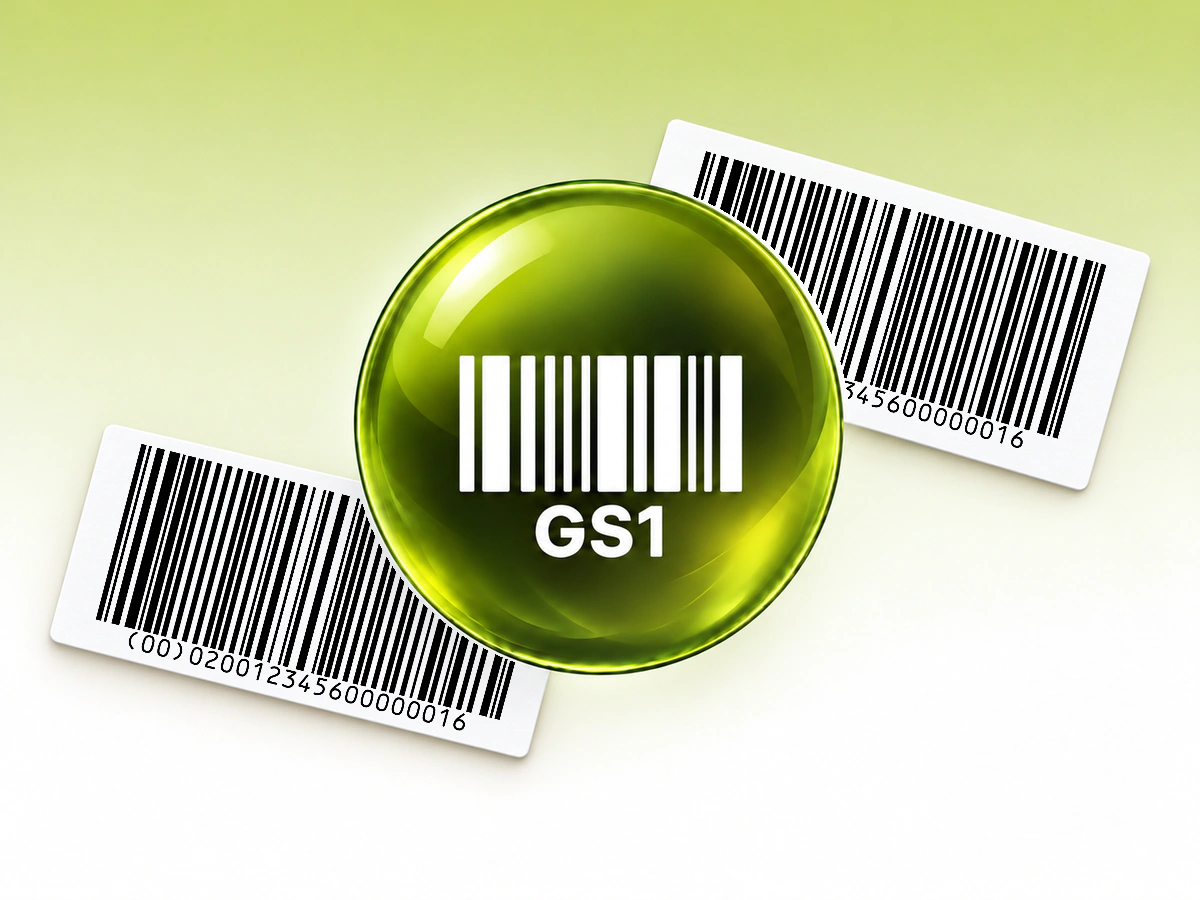
Structured Application Identifier fields

Format guidance

Code 128 and GS1-128 serve different needs. Use the GS1-128 fields when the receiving system expects structured data such as a lot number or expiry date.

GS1-128 Barcode Generator

Data to supply

Supported text or identifiers

Format guidance

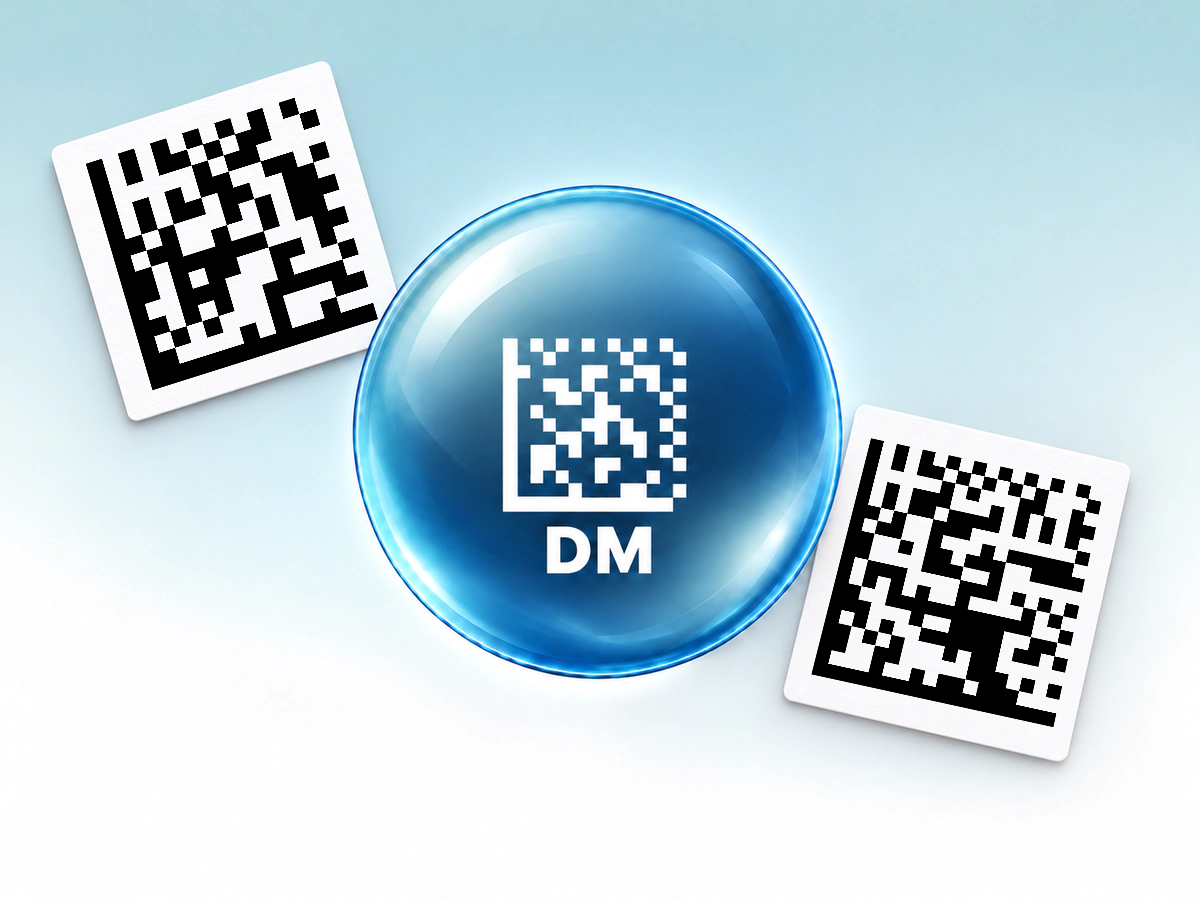
Use a compatible 2D scanner. This generator creates generic Data Matrix, not GS1 DataMatrix.

Data Matrix Generator

Explore all 10 barcode formats

Open a dedicated generator for input rules, examples and format-specific guidance. The same editor supports every format and all six download options.

Download your barcode in six formats

Choose image files for everyday layouts or native vectors for scalable artwork.

Images: PNG, JPG and WebP

PNG for labels and image layouts.
JPG for software that requires JPEG.
WebP for compatible digital layouts.

Images are at least 1024 pixels wide and keep the barcode’s proportions. Long barcodes may be wider so each bar stays at least three pixels wide. Data Matrix exports are 1024 × 1024 pixels.

PNGJPGWebP

Vectors: SVG, PDF and EPS

SVG for design tools.
PDF for print layouts and documents.
EPS for packaging and illustration workflows.

All three preserve vector shapes, text outlines, colours and gradients. Keep the complete barcode and its quiet zones when resizing. Choose the physical print size for your barcode and scanner; pixels alone do not determine it.

SVGPDFEPS

QR Code AI in numbers

Create barcodes with QR Code AI, a platform used by 500,000 people across more than 200 countries.

Barcodes created

10M

QR Code AI users

500K

Countries represented

200+

Barcode generator FAQ

Yes. Create three Barcodes in your personal account and three in each non-Premium Workspace, with free PNG, JPG, WebP, SVG, PDF and EPS downloads. Editing does not use a creation slot; archiving does not restore one. Premium allows more creations. Barcode creation, editing and downloads never start the seven-day trial. The encoded value keeps working after a trial ends.

You can choose a format, enter data, customise the design and check its readability in the website editor before signing in. Sign-in is required to save the Barcode to your account and download it. Your in-progress design stays on your device, and the same design continues into your account.

No. QR Code AI creates the barcode image from the number you provide; it does not issue a GTIN or ISBN or register a retail product. For an item sold through a retailer or marketplace, use the assigned identifier and the format that partner requires. For an internal inventory label, use an identifier linked to your own stock record. GS1 US explains the difference between a GTIN and its barcode.

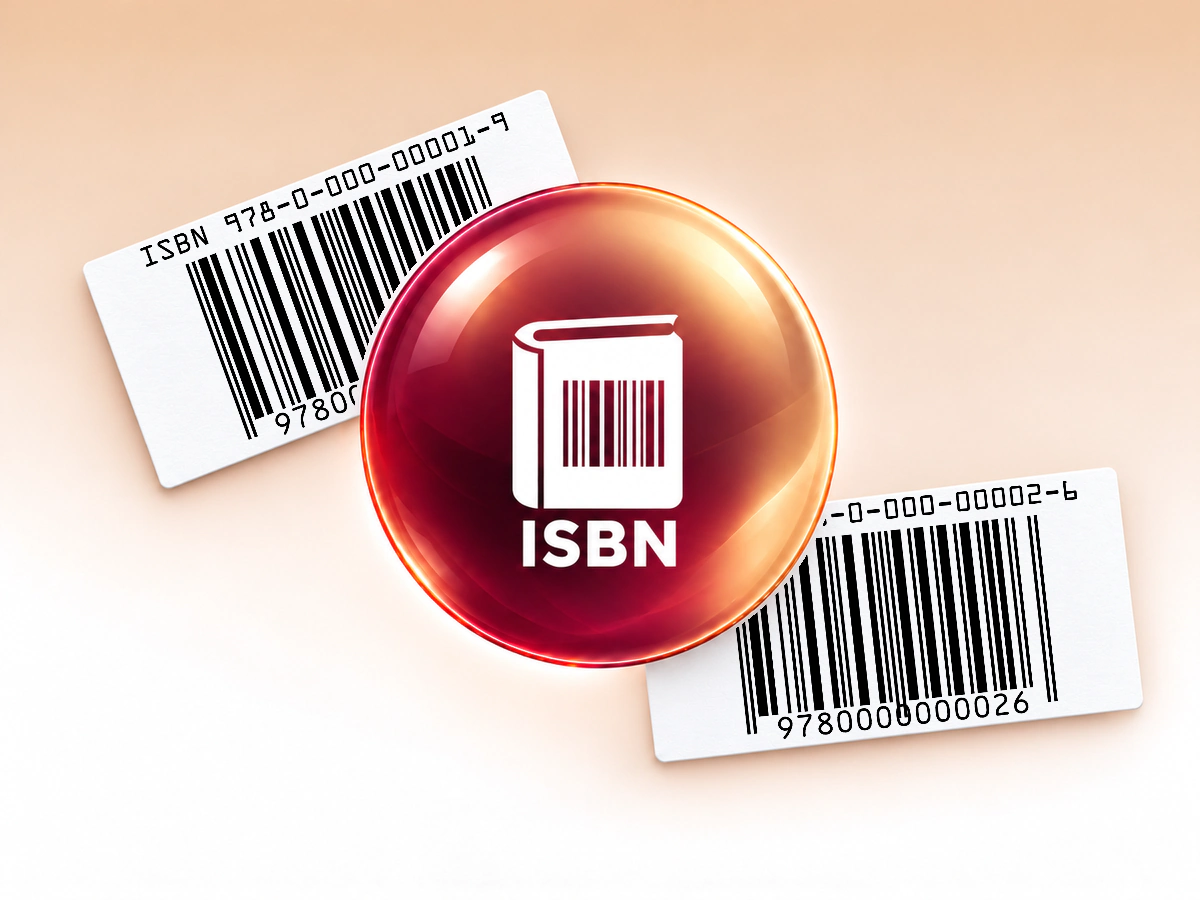
A standard EAN or UPC product barcode carries an identifier. The checkout or inventory system uses that number to retrieve the product name, price and other details from its database. Generating the symbol does not create those records. The ISBN option can also include a five-digit price add-on when the book workflow requires it.

These barcodes contain their value directly and have no built-in expiry date or managed redirect. The printed data stays the same. A receiving system can still reject an unknown identifier, so keep the corresponding inventory or product record available. An expiry date encoded as a GS1-128 data field describes the item; it does not switch the barcode off.

You can edit the saved Barcode and download an updated image. Changing the encoded value requires replacing the existing printed or shared symbol; old copies keep their original data. QR Code AI Barcodes do not include scan analytics. Your inventory or checkout software may record scans within its own workflow.

A phone needs a camera app or scanner that supports the chosen barcode format. Support varies, and Data Matrix needs a compatible 2D reader. Test the final label with the actual device and software your team will use. The editor’s automatic readability check does not guarantee that every camera app supports the format.

Barcode is the broader family of machine-readable symbols. Linear formats such as Code 128, EAN and UPC use bars; QR codes and Data Matrix use two-dimensional patterns. This editor offers nine linear format options plus generic Data Matrix, not GS1 DataMatrix. For a website link, WiFi connection or hosted document, use the QR code generator.