Enter the correct data
Enter the full 14-digit GTIN representation for the item being labeled. Confirm its packaging level and final check digit against your product records.








An ITF-14 barcode carries a GTIN in a 14-digit representation for distribution and logistics. Its bearer bars surround the barcode to help protect against short scans. ITF-14 is suited to case and carton identification; it is not a substitute for the retail checkout barcode requested for a consumer unit. See the GS1 ITF-14 print guidance for the underlying format.
For an outer carton, enter the GTIN appropriate to that packaging level. Preserve the bearer bars and quiet zones when placing the exported artwork on the box. A shorter GTIN may need leading-zero padding for its 14-digit representation, but changing a leading digit is not a way to assign a new case identifier.
Enter the data, check the symbol and test the downloaded label in the workflow where it will be scanned.
Enter the full 14-digit GTIN representation for the item being labeled. Confirm its packaging level and final check digit against your product records.
Choose a dark foreground on a lighter background. Keep the built-in quiet zones and add padding if needed. Review the preview and resolve validation or scannability errors.
Choose PNG, JPG, WebP, SVG, PDF or EPS. Preserve proportions and clear margins in your layout, then scan a printed sample with the intended reader and compare the returned data.
Check your data, preserve clear margins and choose the right file for your label.
The generated ITF-14 symbol includes bearer bars and internal quiet zones. Preserve them when resizing or placing the label, and test the printed carton on its actual material with the intended scanner.
The generator preserves required quiet zones around the symbol. Keep these areas clear in your layout, and test a printed sample at its intended size with the scanner you will use.
Download SVG, PDF or EPS vectors, or PNG, JPG or WebP images. Every export is checked against the saved data; test the final print on its intended material too. Compare the six barcode download formats in our guide.
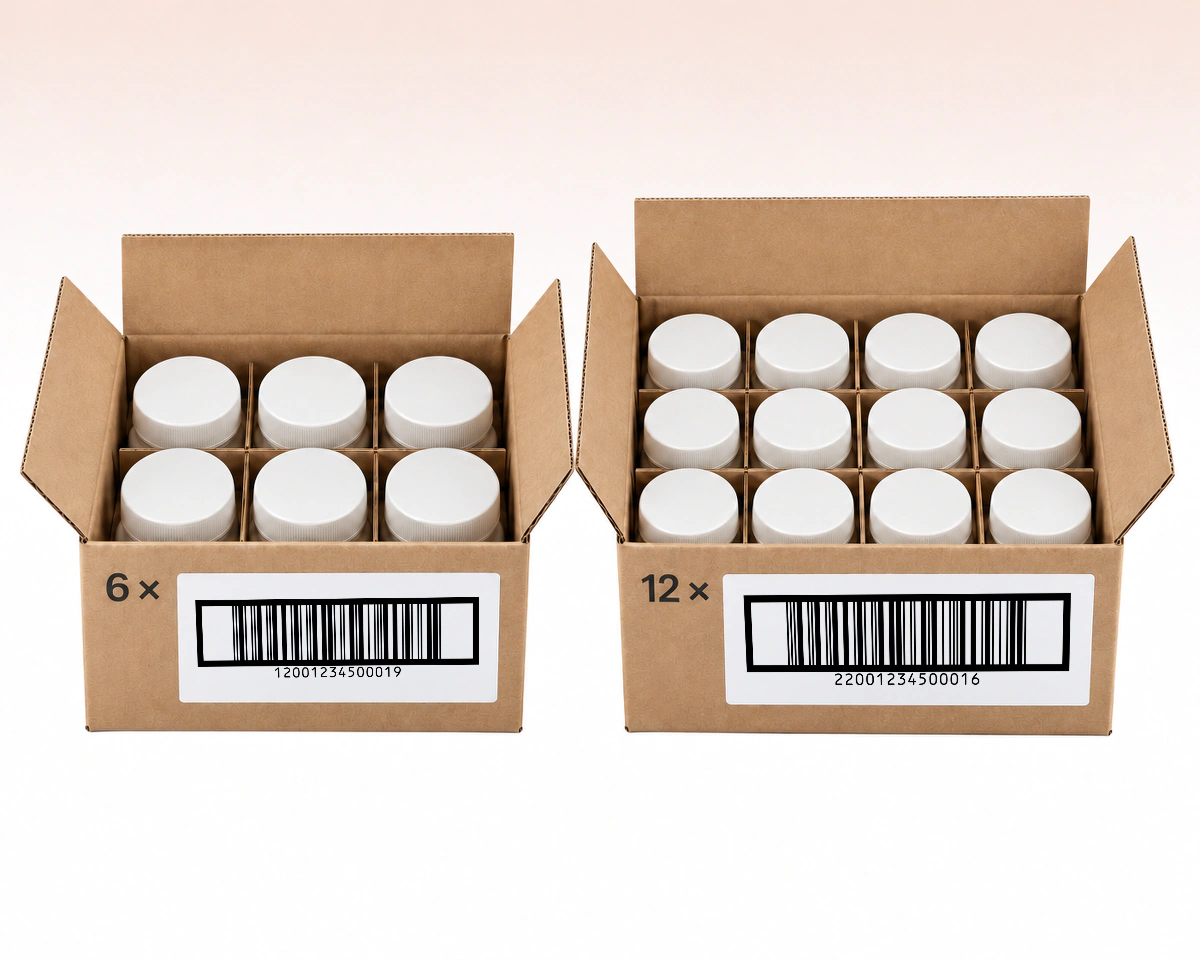
A case of six units and a case of twelve units are different packaging configurations. Use the GTIN assigned to each case configuration instead of copying the same carton barcode to both. Keep the quantity in the corresponding product record; the barcode does not calculate the contents.
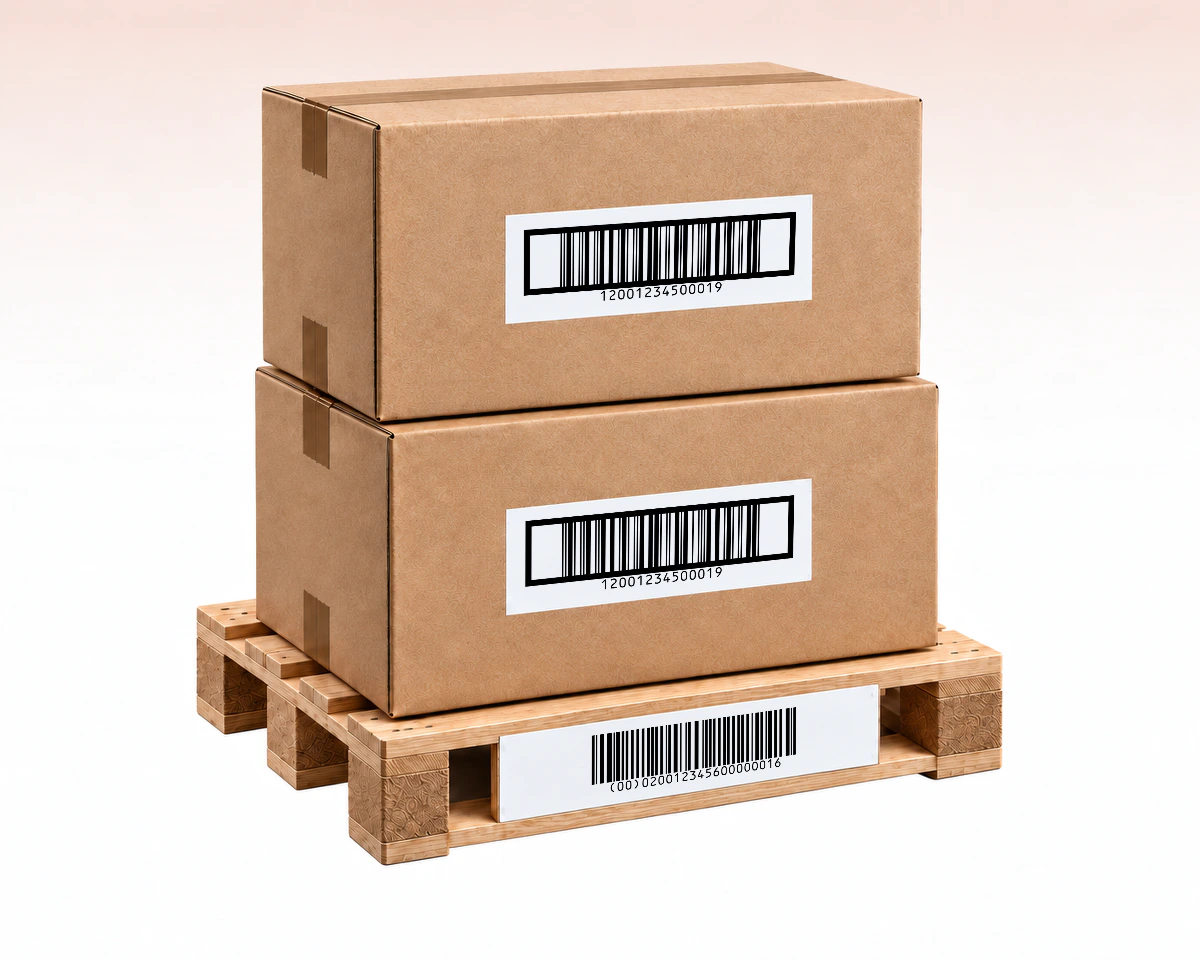
Two cartons of the same trade item can carry the same GTIN. That identifies their product configuration, not each individual shipping unit. When the logistics workflow needs a unique identity for a particular carton or pallet, it may require a Serial Shipping Container Code (SSCC) encoded in GS1-128.
QR Code AI combines ITF-14 check-digit guidance with native SVG, PDF and EPS files for carton artwork. ITF-14 carries a GTIN; use GS1-128 for selected lot, expiration or SSCC fields, and EAN-13 for retail checkout when your partner requires it. Green checks mark a better fit for the stated need; a cross means that capability is unsupported. Select an icon or underlined label for details.
| What to compare | ITF-14 | GS1-128 | EAN-13 |
|---|---|---|---|
Encoded data | GTIN · 14 digitsGTIN · 14 digits GTIN in a 14-digit representation | GTIN / GS1 fieldsGTIN / GS1 fields GTIN or logistics fields with GS1 AIs | 13-digit retail ID13-digit retail ID A 13-digit retail product identifier |
Lot / expiry | GTIN only | Supported through selected AIs | Product identifier only |
SSCC | Not encoded in ITF-14 | Supported with AI 00 | Not encoded in EAN-13 |
Scanning point | Warehouse receivingWarehouse receiving Distribution and warehouse receiving | GS1-aware logisticsGS1-aware logistics A logistics system that interprets GS1 fields | Retail checkoutRetail checkout Retail checkout, subject to partner requirements |
Layout check | Bars + quiet zonesBars + quiet zones Preserve bearer bars and quiet zones | Complete AI dataComplete AI data Allow space for the complete AI data | Retail print rulesRetail print rules Follow the required retail print specification |
Keep carton barcode records in QR Code AI’s searchable library with tags and one-year change history. Owners and Members can update the records, while Viewers can inspect and download them without editing, supporting a shared handoff to the packaging team.
Use the identifier assigned to the correct packaging level. Padding a number to 14 digits does not assign a new carton identity. GS1 describes these carrier roles in its GTIN barcode guidance and GS1 US barcode explanations. Input checks and a readable download do not certify the finished printed label.
Encode GTIN, lot and date fields in one structured barcode.
Create a GS1-128 barcode
Make a retail barcode from your assigned 13-digit product number.
Create an EAN-13 barcode
Create a UPC-A barcode for your assigned retail product number.
UPC Generator (UPC-A)
Turn inventory IDs and reference numbers into printable barcodes.
Create a Code 128 barcode
Encode text and identifiers in a compact two-dimensional symbol.
Create a Data Matrix barcode
Create EAN-8 labels for products with an assigned 8-digit GTIN.
Create an EAN-8 barcodeInput, printing and saved barcode behavior
ITF-14 identifies trade items in distribution and logistics, including cases and cartons. It carries a GTIN in 14-digit form. Use the appropriate EAN or UPC format when a retailer requires a consumer-unit checkout barcode.
No. ITF-14 carries the GTIN rather than additional lot or date fields. Use GS1-128 when the receiving workflow requires supported GS1 Application Identifiers for that extra information.
The surrounding lines are bearer bars. They help protect against short scans and are part of the symbol's printing requirements. Keep the bearer bars and quiet zones when you place the downloaded barcode into a carton layout.
Yes. QR Code AI offers SVG, PDF and EPS vector exports, plus PNG, JPG and WebP raster files. Keep the complete symbol and its blank margins in the layout. Verify a printed sample at its intended size with a compatible scanner.
A downloaded barcode contains fixed data and has no built-in expiration date. Changing a saved value requires downloading and printing a new symbol; existing copies keep their original data. These Barcodes do not provide scan analytics or editable redirects. A connected inventory or checkout system may update its own record for the same identifier. For customer-facing web links with scan analytics, consider a URL QR code and QR code tracking.
Yes. A personal account and each non-Premium Workspace can create three Barcodes. Archiving a Barcode does not free a creation slot; Premium allows additional creations. Creating, editing or downloading a Barcode does not start the seven-day trial. The trial begins with the first dynamic QR code or Smart Link in that scope. The barcode itself retains its directly encoded value when a trial ends; it has no managed redirect to keep active.