Enter the correct data
Enter the full 12-digit GTIN, preserving any leading zero. Compare check-digit guidance with the assigned number and the retailer's product record.







A UPC (Universal Product Code) identifies a retail product. This UPC generator renders the 12-digit GTIN as a UPC-A barcode; it does not assign a number or register the product. A compatible checkout system uses the scanned identifier to look up product details and price. See the GS1 barcode format guide for the underlying format.
For a retail package, use the 12-digit number assigned to that exact product and variation. Compare the human-readable digits beneath the bars with your catalog, then scan a printed sample in the receiving system. Keep the number as text in spreadsheets so a leading zero is not lost.
Enter the data, check the symbol and test the downloaded label in the workflow where it will be scanned.
Enter the full 12-digit GTIN, preserving any leading zero. Compare check-digit guidance with the assigned number and the retailer's product record.
Choose a dark foreground on a lighter background. Keep the built-in quiet zones and add padding if needed. Review the preview and resolve validation or scannability errors.
Choose PNG, JPG, WebP, SVG, PDF or EPS. Preserve proportions and clear margins in your layout, then scan a printed sample with the intended reader and compare the returned data.
Check your data, preserve clear margins and choose the right file for your label.
Use the same product identifier in the barcode and retail listing. The generator checks number structure; product ownership, catalog details and retailer acceptance must be confirmed separately.
The generator preserves required quiet zones around the symbol. Keep these areas clear in your layout, and test a printed sample at its intended size with the scanner you will use.
Download SVG, PDF or EPS vectors, or PNG, JPG or WebP images. Every export is checked against the saved data; test the final print on its intended material too. Compare the six barcode download formats in our guide.
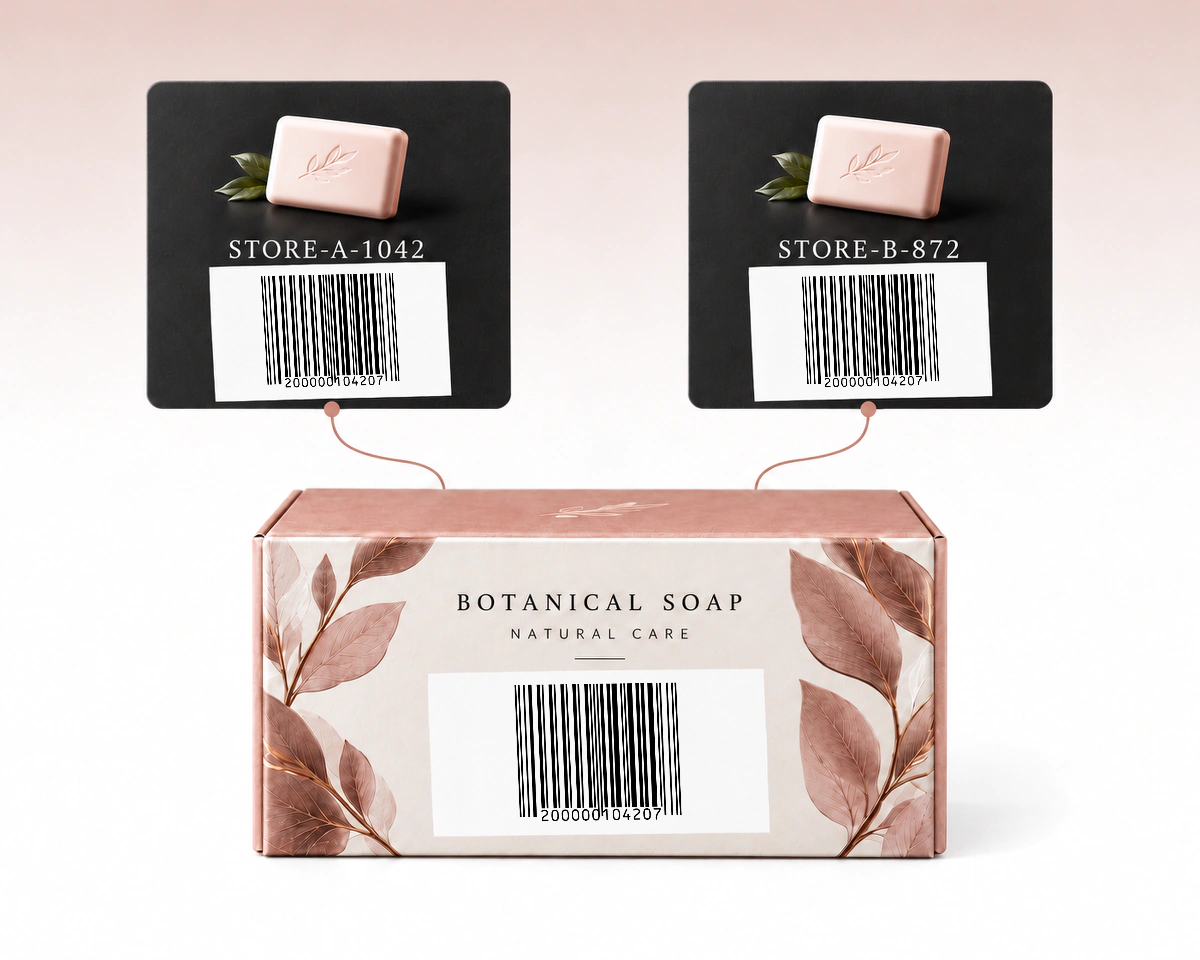
Different sellers can use their own internal SKUs for the same branded product. Those catalog references do not replace the product's assigned UPC. Keep the UPC in the product-identifier field and each seller's SKU in its own field, so the packaging and the receiving catalog refer to the same item.
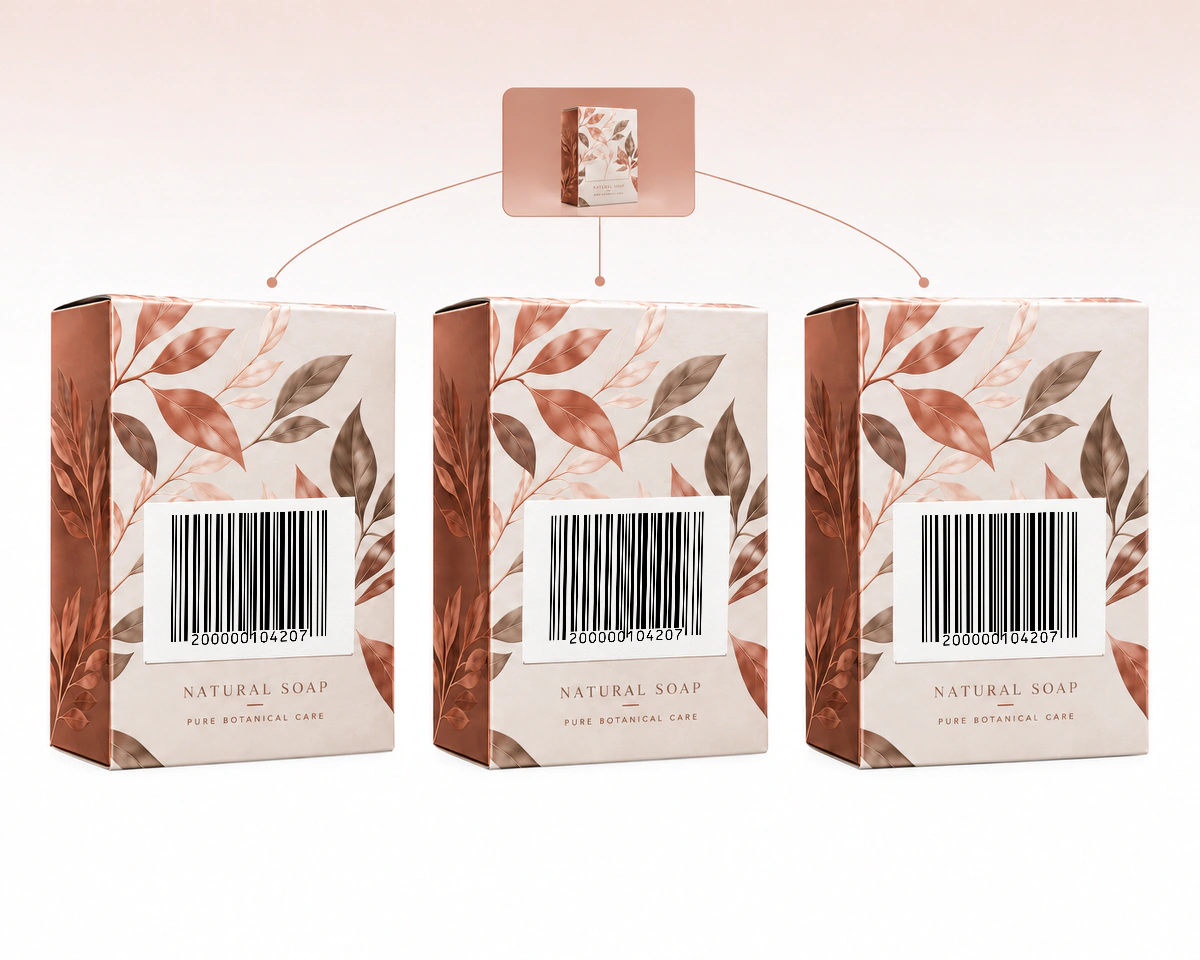
Identical units of the same retail product can carry the same assigned UPC. The UPC identifies that product, not a unique physical item. If your workflow needs to distinguish individual units, it needs a separate serial identifier and a system that records it.
QR Code AI checks the complete UPC-A input and offers native vector files that stay sharp when placed in packaging artwork. Choose UPC-A, UPC-E or EAN-13 from the assigned product number and your retailer’s requirements. Select an icon or underlined label for details.
| What to compare | UPC-A | UPC-E | EAN-13 |
|---|---|---|---|
Identifier | GTIN-12 | Eligible GTIN-12Eligible GTIN-12 Eligible GTIN-12 in compressed form | GTIN-13 |
Editor input | 12 digits | 8 digits total8 digits total 8 digits, including number system and check digit | 13 digits |
Packaging | Full UPC symbolFull UPC symbol Full UPC representation | Compact eligible UPCCompact eligible UPC Compact symbol for an eligible UPC | GTIN-13 retail symbolGTIN-13 retail symbol Retail symbol for an assigned GTIN-13 |
Choice check | Match product recordMatch product record Match the number to the product record | Eligibility + outputEligibility + output Check eligibility and scanner output | Identifier + retailerIdentifier + retailer Confirm the identifier and retailer requirements |
Save the UPC-A record in QR Code AI to find it later by search or tags and review its one-year change history. Before download, the exported image or vector artwork must decode to the saved value in the expected format, checking the file that goes into your artwork.
All complete inputs include a check digit. EAN/UPC acceptance is international, subject to the receiving retailer’s requirements; the choice is not simply US versus Europe. See GS1 US barcode-type guidance and GS1 on worldwide acceptance. QR Code AI renders the supplied identifier and does not assign it.
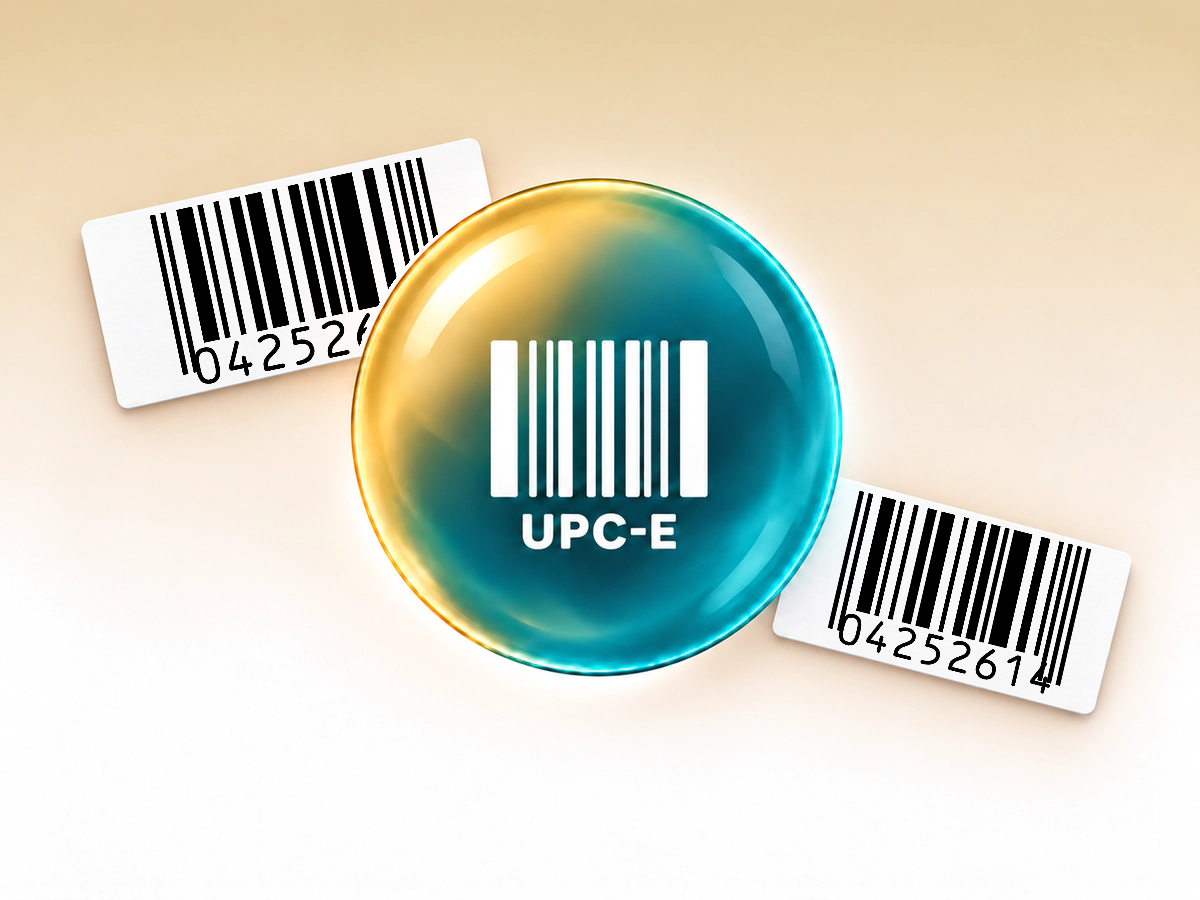
Build a compact UPC-E symbol from a compatible product identifier.
Create a UPC-E barcode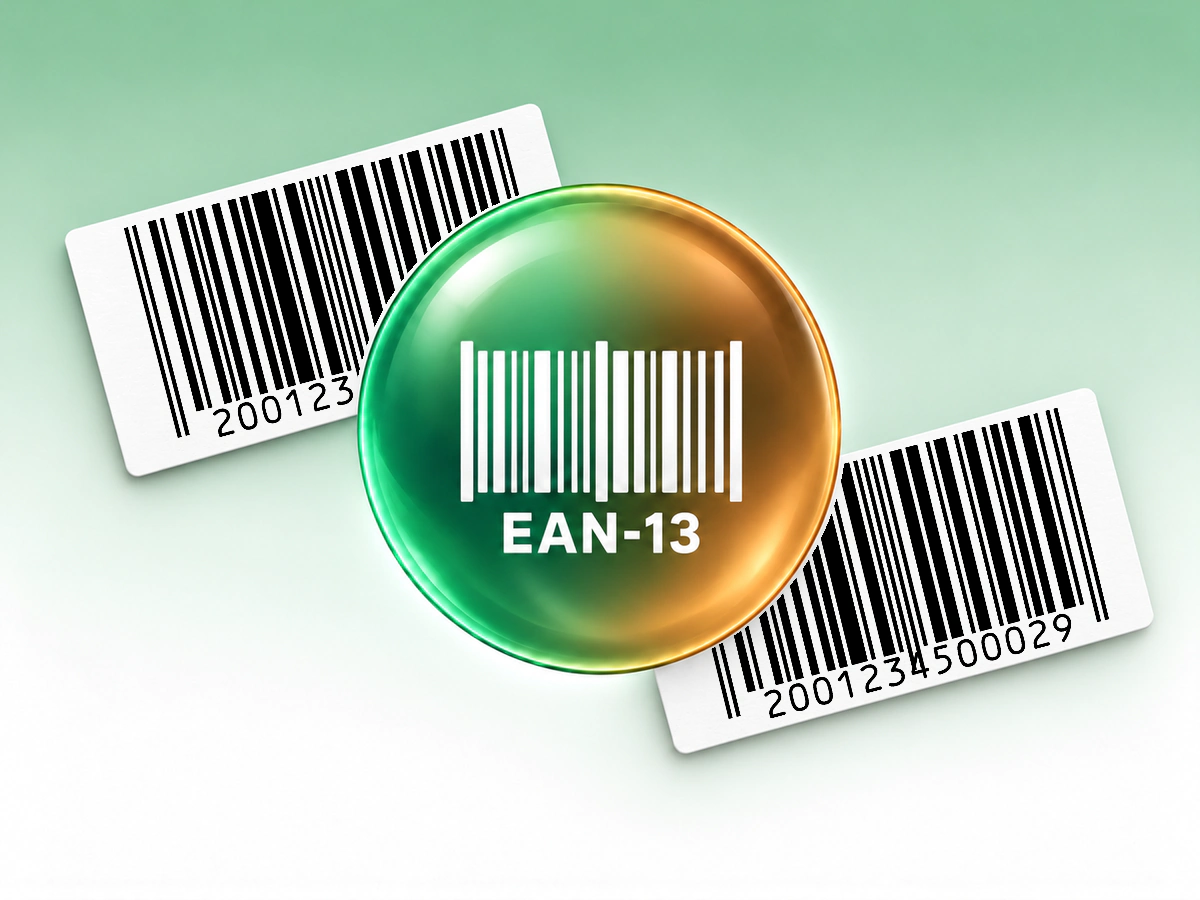
Make a retail barcode from your assigned 13-digit product number.
Create an EAN-13 barcode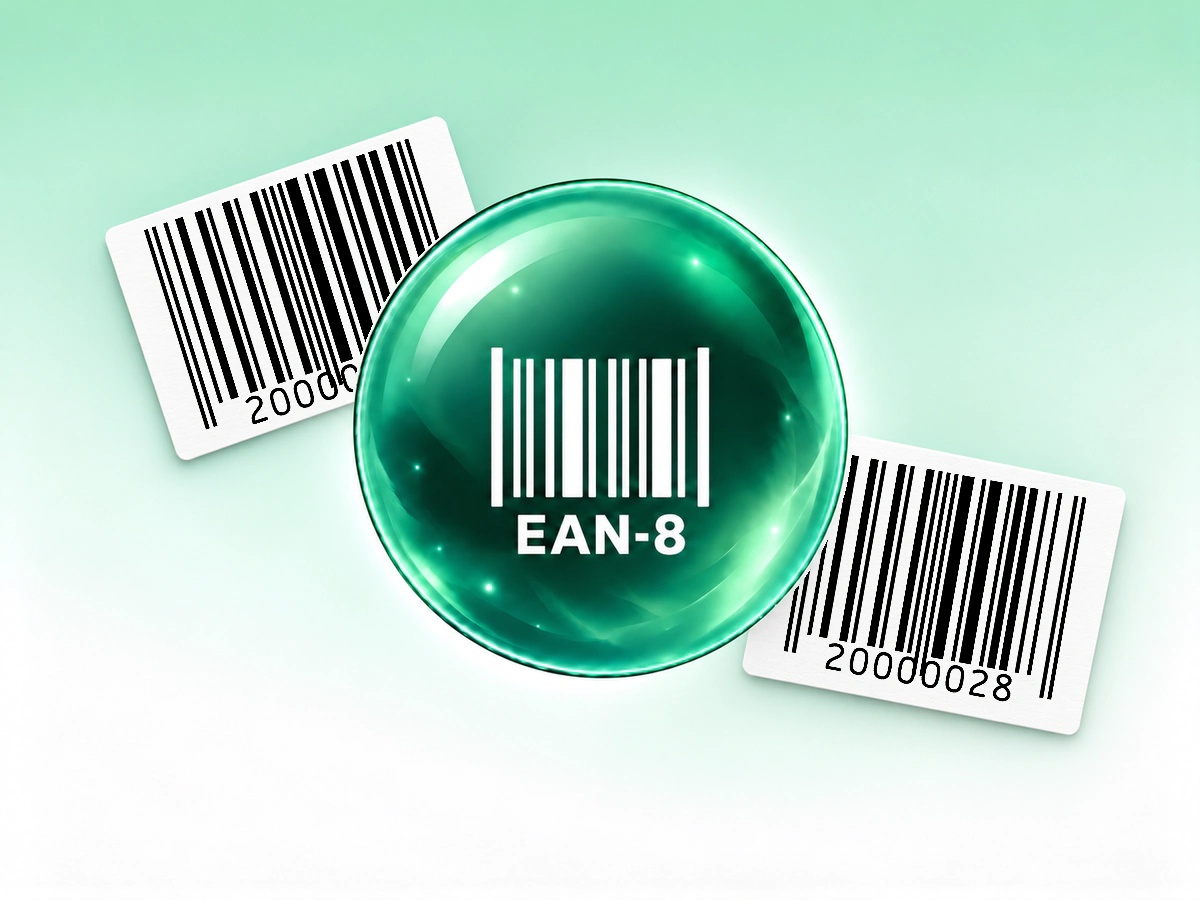
Create EAN-8 labels for products with an assigned 8-digit GTIN.
Create an EAN-8 barcode
Encode GTIN, lot and date fields in one structured barcode.
Create a GS1-128 barcode
Turn inventory IDs and reference numbers into printable barcodes.
Create a Code 128 barcodeInput, printing and saved barcode behavior
UPC-A carries 12 digits, including the final check digit. Enter the complete number in this generator and preserve leading zeros. A spreadsheet that treats the value as a number can remove a zero that belongs in the identifier.
You can render a structurally valid number, but you should use the identifier assigned to that specific product. This tool does not sell UPC numbers, assign GTINs or guarantee acceptance by a retailer or marketplace. If your packaging needs a compact symbol, check whether the assigned number is eligible for UPC-E.
No. The barcode identifies the product. The checkout or catalog system looks up the price and other details associated with that identifier. Updating a database price does not change the number encoded in the barcode.
Yes. QR Code AI offers SVG, PDF and EPS vector exports, plus PNG, JPG and WebP raster files. Keep the complete symbol and its blank margins in the layout. Verify a printed sample at its intended size with a compatible scanner.
A downloaded barcode contains fixed data and has no built-in expiration date. Changing a saved value requires downloading and printing a new symbol; existing copies keep their original data. These Barcodes do not provide scan analytics or editable redirects. A connected inventory or checkout system may update its own record for the same identifier. For customer-facing web links with scan analytics, consider a URL QR code and QR code tracking.
Yes. A personal account and each non-Premium Workspace can create three Barcodes. Archiving a Barcode does not free a creation slot; Premium allows additional creations. Creating, editing or downloading a Barcode does not start the seven-day trial. The trial begins with the first dynamic QR code or Smart Link in that scope. The barcode itself retains its directly encoded value when a trial ends; it has no managed redirect to keep active.